




| Search: |
|
The Mergetool®
Many years of development experience have been put into the Mergetool®. The tool supports both source code Compare and Merge development with Microsoft Dynamics NAV (Navision). Additionally, many other tools have been developed within the framework of the Mergetool®. All the code in the Mergetool® is available for C/SIDE developers to modify. This enables advanced users to build reports and unique features in the same way that they would customize the application for a customer.
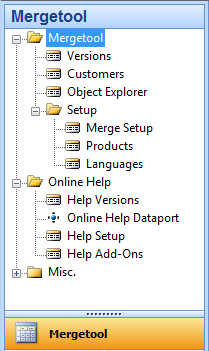
Using the Mergetool® requires a fair amount of knowledge about Microsoft Dynamics NAV development. The tool can help developers learn Microsoft Dynamics NAV through, for example, the Source Code Analyzer and Compare functionality, which will give you a good knowledge about the source code and the changes you make. But merging and some of the other advanced functions will require more in-depth experience with Microsoft Dynamics NAV development.
Basics
Objects in text-format from Dynamics NAV are the source for the Mergetool®. During the import of a new version of the application, the source code is placed in a few tables of the database. The size of this database can be very large, given that a NAV 2009 SP1 version requires around 500 MB of space. During the import, the code context is interpreted; the Mergetool® uses this information to improve the results. A normal text compare/merge program is not able to understand the context in the same way that the Mergetool® uses the structure of the code.
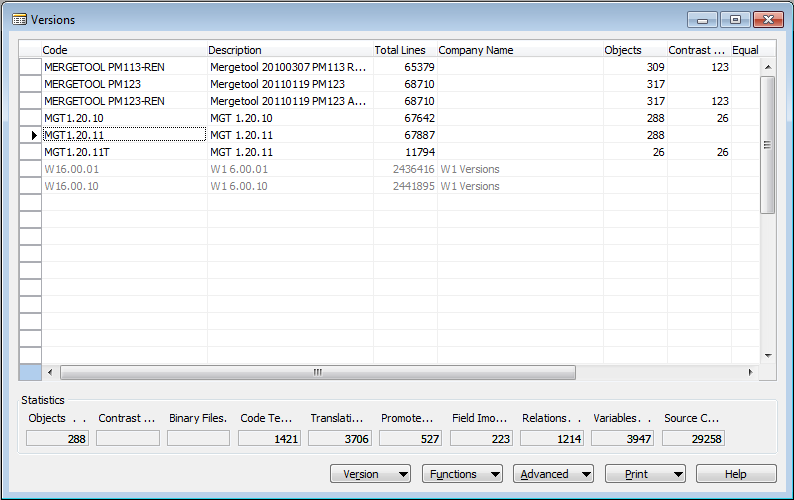
Regular text files (like setup data) can also be imported and used the same way as objects from C/SIDE. This makes it possible to compare and merge these types of files, too.
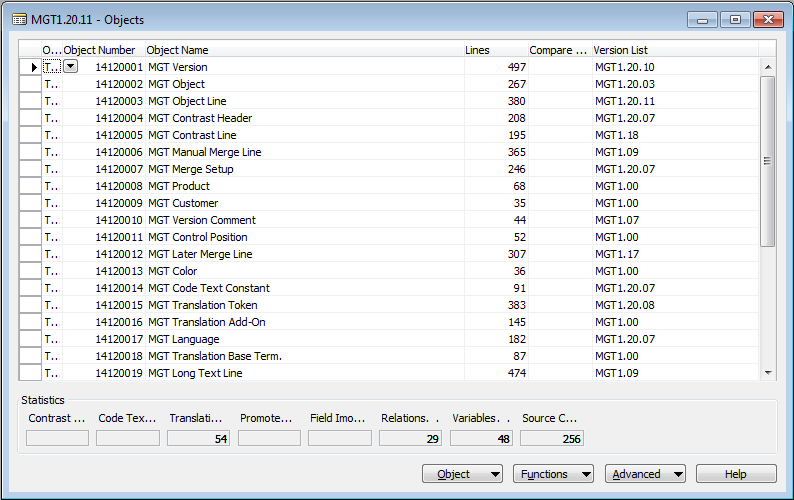
Compare and Log
The Compare function uses multiple lines for identifying equal code. This makes for a much better compare when empty lines exist in the source code. The interpretation of the source code also ensures that similar code from a different context is not making it equal.
After the compare is completed, the log of changes can be viewed directly in the Mergetool® with many functions like Next/Previous Change, changes by object overview and many more. The log can also be exported to a text-file in several different formats.
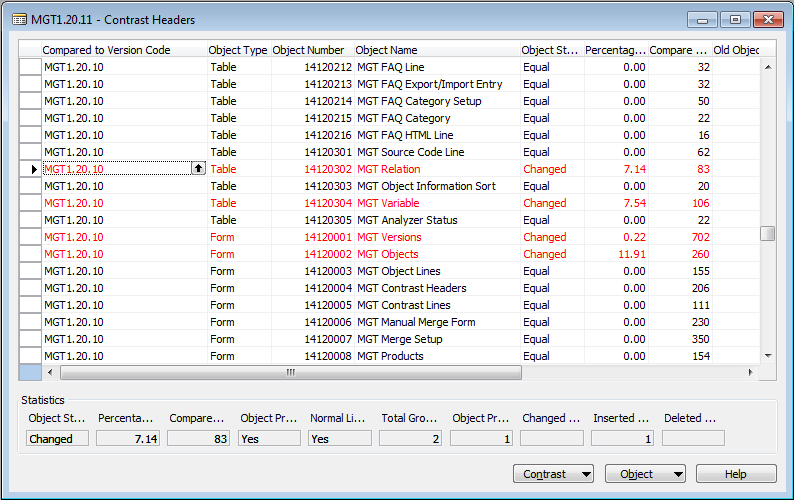
Objects that are only modified in the Object Properties can also be identified and removed to clean-up changes before a release or further work in the Mergetool®.
Merge
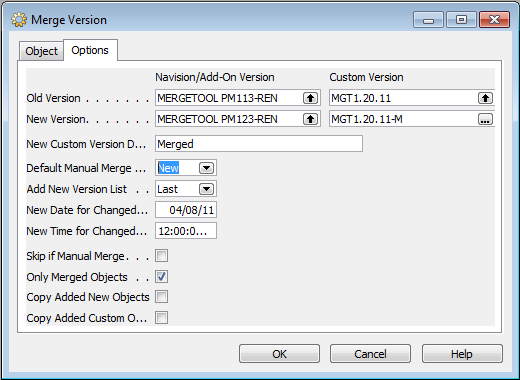
The Merge is the key feature of the Mergetool®. By using three versions – Common Base, Customization and New Code – during the merge, many changes can be merged automatically without any user action. In many cases this incorporates 90%-95% of the changes.
When a manual (same code line changed in both Customization and New Code) conflict occur is many function available like, Add Last, Add First, Add New, Manually selecting lines and position. So even when the code cannot be merged automatically in a small percentage of situations, there is very little interaction required. Special functions to deal with PageNames and InPage properties solve another manual issue very fast.
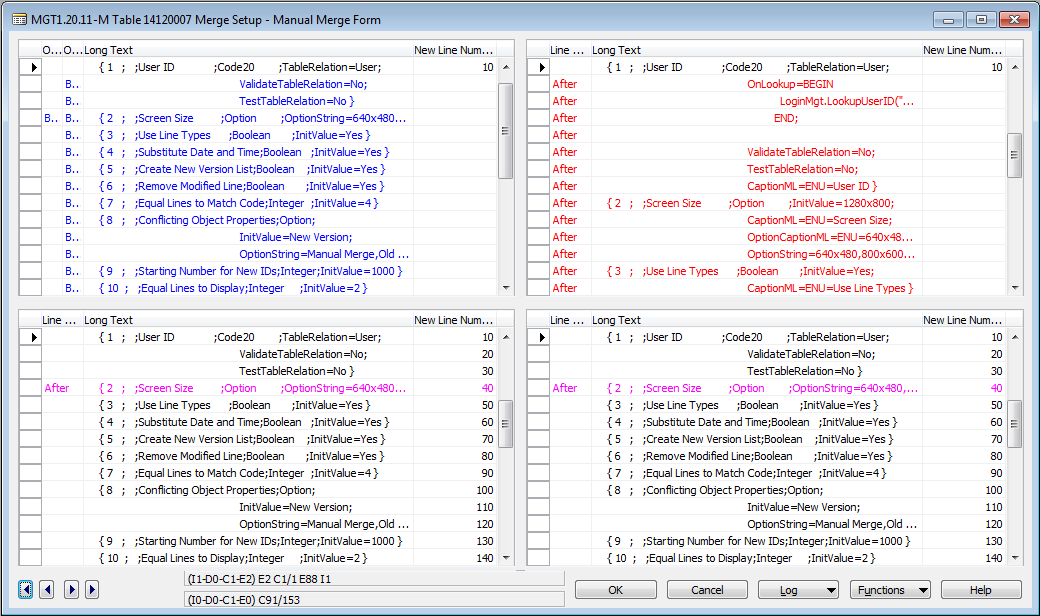
The merge of code is a highly complex process in general. Understanding this process and how the Mergetool® work internally is very beneficial for the user of the tool. Without this knowledge and understanding of how to set up the parameters for the merge, it possible that the result of the merge will not be what is expected. To get familiar with the Merge process, we recommend a demonstration by someone familiar with the tool or attending a class that will teach the Mergetool®.
Source Code Analyzer
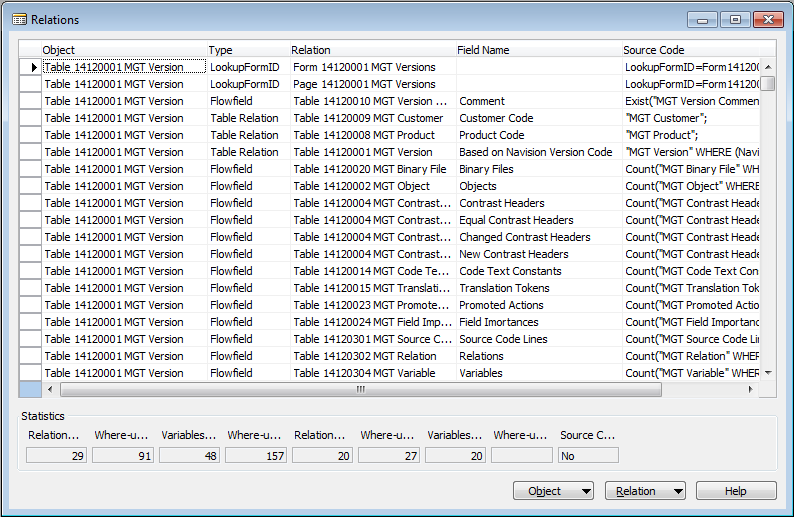
Knowing where an objects is used either as a variable, parameter or in the many different types of relations in the Navision development environment is very powerful. With the Mergetool® is a Object Level Source Code Analyzer included, relations like Table Relation, Flowfield, Source Table, Data Item, Permission, Data Per Company, PagePartID, MenuItem, LookupFormID, DrillDownFormID, SubFormID, CardFormID, RUN and RUNMODAL is all identified in the code.
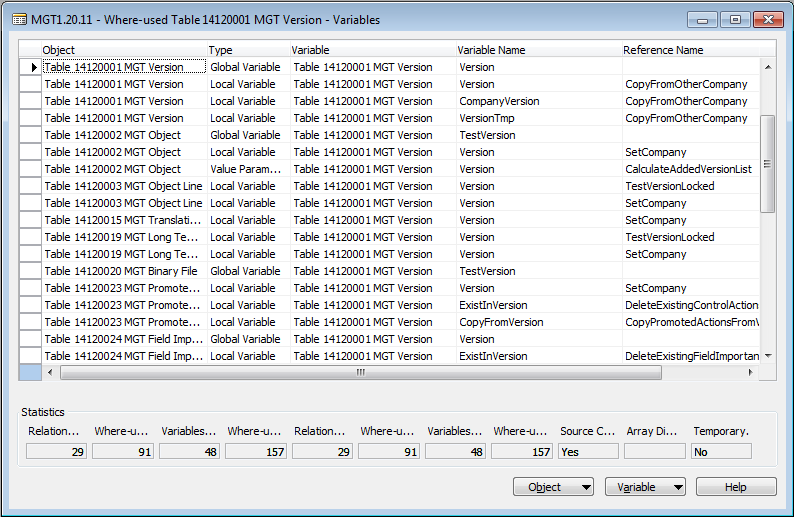
When an objects is used as a variable and parameter must the code often be modified in those locations to implement a customization or to ensure a good testing of the functionality. The Source Code Analyzer in the Mergetool® gives a complete list of Parameters, Global Variables and Local Variables to ensure all places in the code is identified.
Object Explorer
The Object Explorer is a new view on the objects in the database. All the features in the mergetool® like relations and variables are displayed for the objects in the database. It also allow filtering for licensed objects and adding comments.
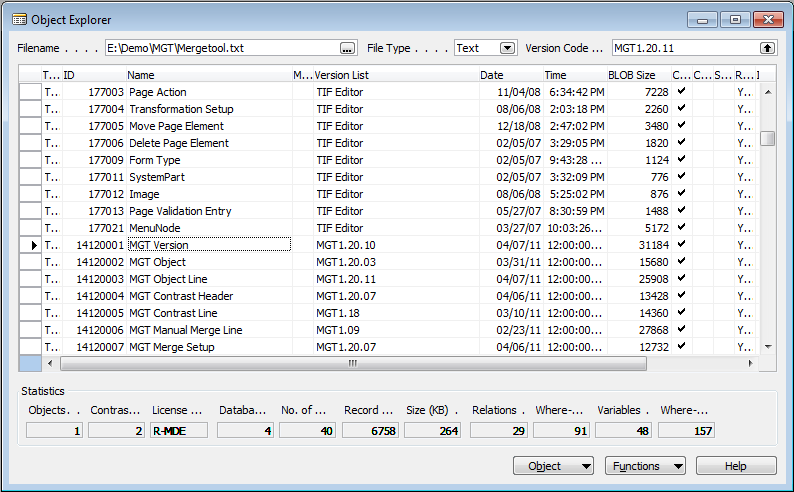
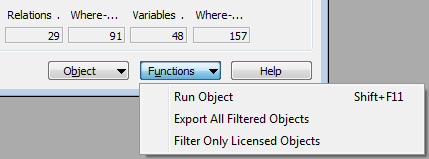
Filtering only for licensed objects is simple and allow exporting the objects with a customers developer license. This task is normally impractical because the number of objects not licensed is scattered in many ranges. Even with a partner license is there still objects that is not licensed for exporting as text.
Batch Processing
Many task in the Mergetool can quite lengthy in time. It is possible to setup a list of tasks to be performed and then start the process. This can be used for importing many large version or import a new version compare it again another merge and then start a merge. The possibilities are huge with the Batch Processor.
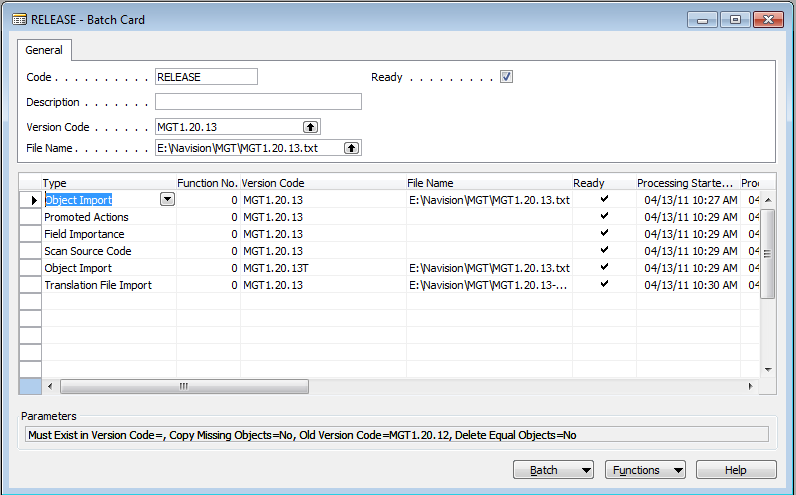
The request for all the processes are filled out before the first process starts. This will allow for hours of processing without any user needs to touch the keyboard.
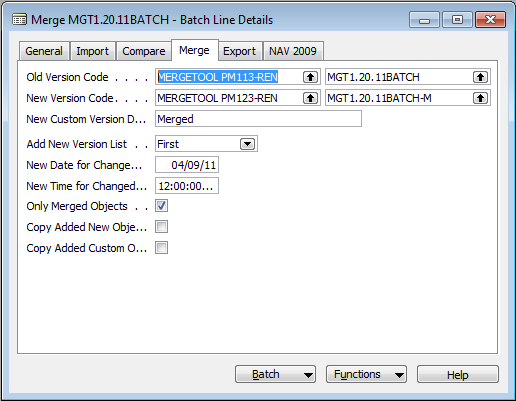
After all the steps has completed in the batch processor can the user then perform the few manual steps required.
Unused Variables
It can be very time consuming and hard to find unused variables in the code. When many unused variables exist, it is very confusing for another programmer. The Mergetool® can identify most variables that are unused in the code, which makes it more simple to modify these few objects.
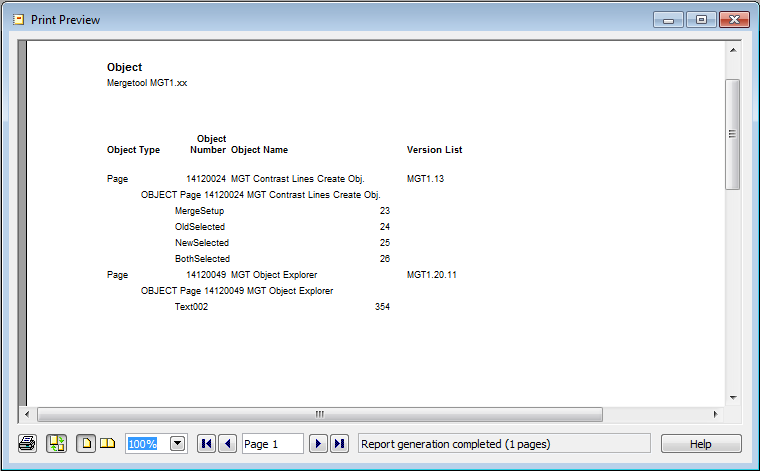
Create Captions and Text Constant
Captions are often forgotten during the programming, like in Field Name and Object Name. Text Constants are also hard to program with and can make the error texts and code harder to read initially when programming. With the Mergetool®, the Captions and Text Constants can be generated by automatically.
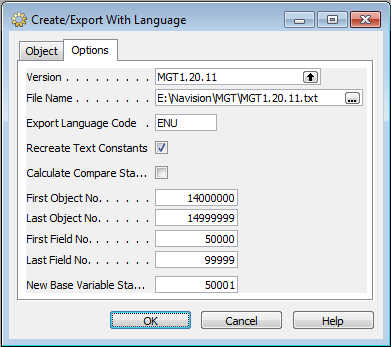
When creating Text Constants, the user must determine when text should be added as Text Constants and which should be generic code like “A12345” or command lines that are really not different in another language.
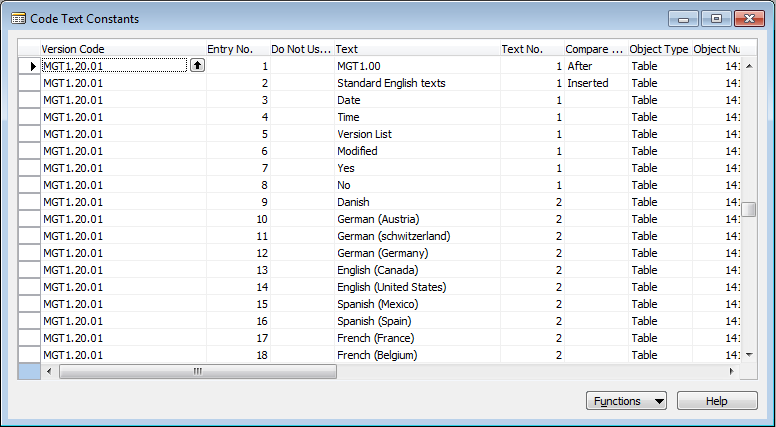
Translation
In every country, Navision is delivered with multiple languages. In most cases, translation is necessary. A build can be created in the Mergetool®, which allows the use of existing text in the base product or older versions to do an automatic translation. After the automatic translation, it is possible to translate even partial strings automatically (the PageNames property is a good example where this is useful).
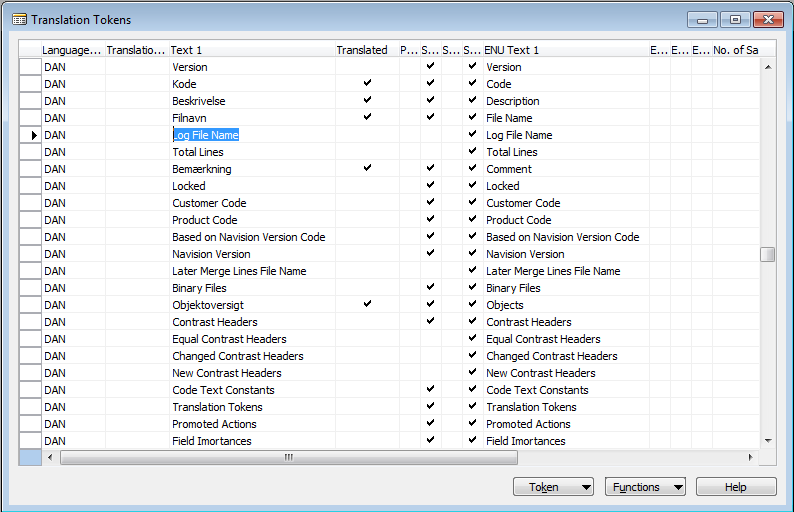
When automatic translation is complete, “intelligent” lookups make it easy to finish the remaining texts. Exporting to Excel and having a translation company working with the error messages and similar is a possibility, too. The relational database is not necessarily the right tool for everyone. When a good base terminology is created , it is often possible to use online tools like Google Translate to finish the first draft translation for proofreading.
NAV 2009 Transformation
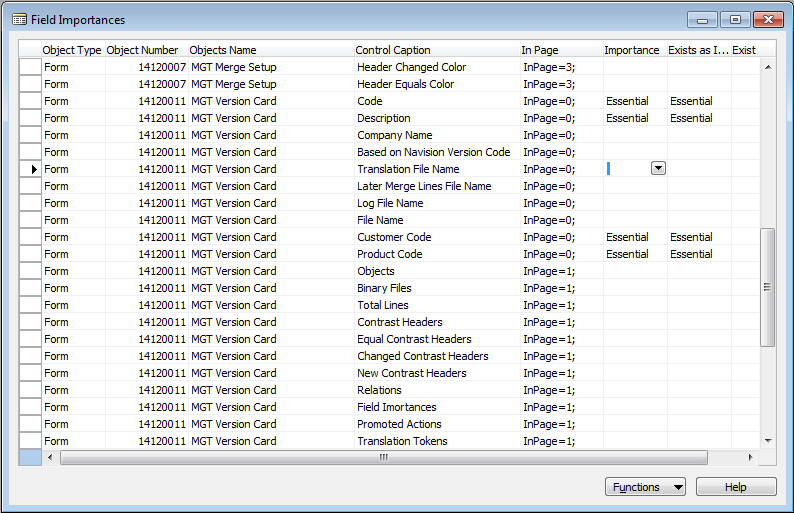
Getting an overview of the controls, menu items and command buttons on each form during a 2009 RoleTailored transformation is very cumbersome if done manually. There are typically thousands of features in a customer installation or bigger ISV product. With the Mergetool®, an application can find this information by reading the code and then assigning the promotion/essential/additional directly from inside. This process also helps with consistency as the same Menu Item always uses the same icon.
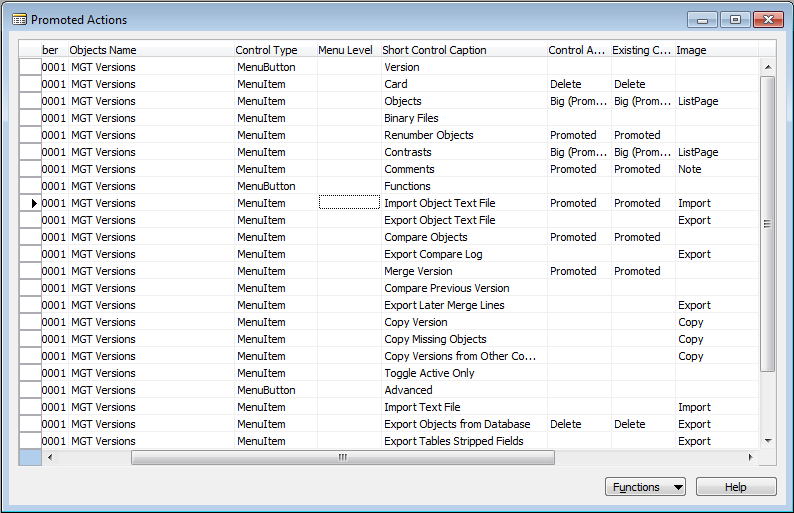
Promoting fields consistently on Documents and Cards is also done with the Mergetool®. A special tool integrated with the Transformation tool to Navision is used to import an correct the data inside the other data.
Online Help
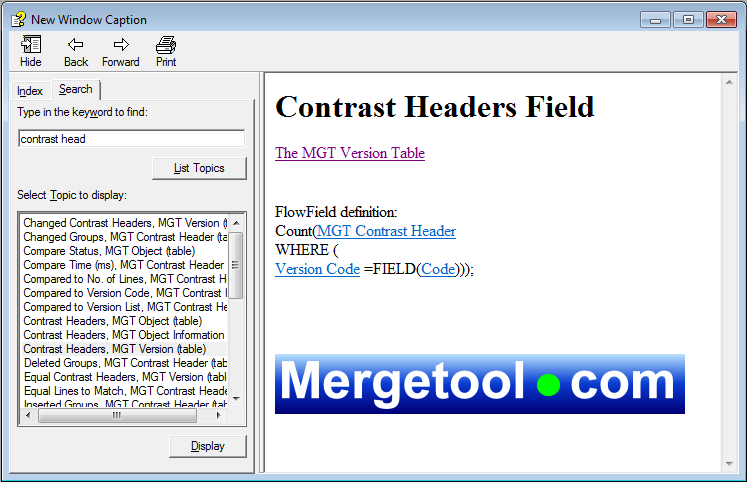
Creating online help directly with an HTML editor is extremely time consuming and requires specialized tools that can cost hundreds of dollars. By reading the source code, however, it is easy to build the entire framework. Afterward, you only need to write the text for Help. The text can easily contain links to other online help both in the base Navision application and the product itself.
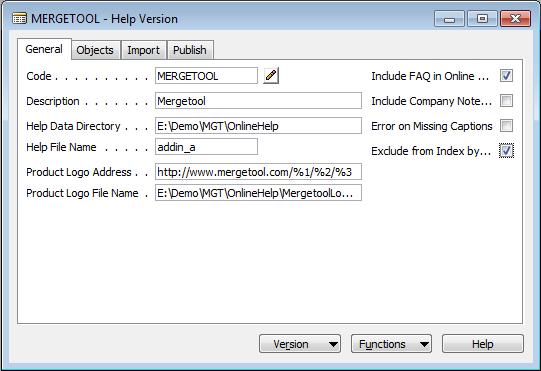
Basic HTML editing can be used in the Online Help for headers, bold and italics, but in general the formatting should be done automatically during the building of the Online Help. HTML code for tables and links to images or external pages can also easily be added in the text.
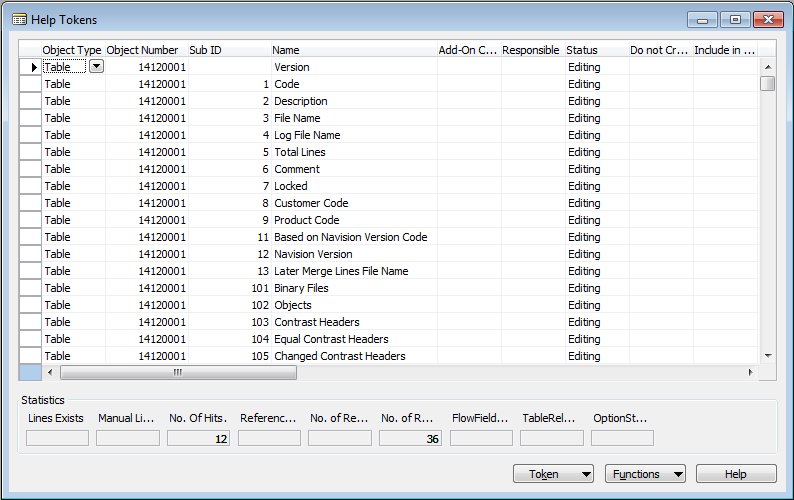
FAQ and other generic description can be added to the Help and Compile together with the Help. Changing header and footer information is also really easy and allows for fast implementation of new features like Feedback, tracking Help usage and other issues.
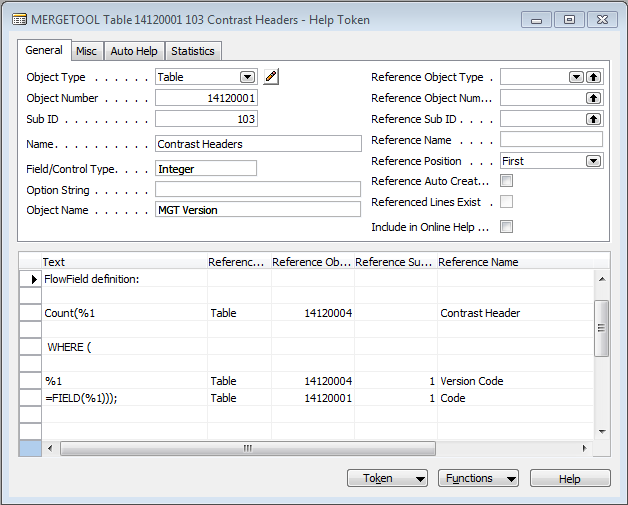
A basic workflow is also created to assist multiple people working on the Online Help. Workflows for technical and language proof reading are also built into the tool.
Renumbering an Application
The mergetool contains an easy to use renumbering tool. The tool can be used to move any application to a different objects range in a few minutes.
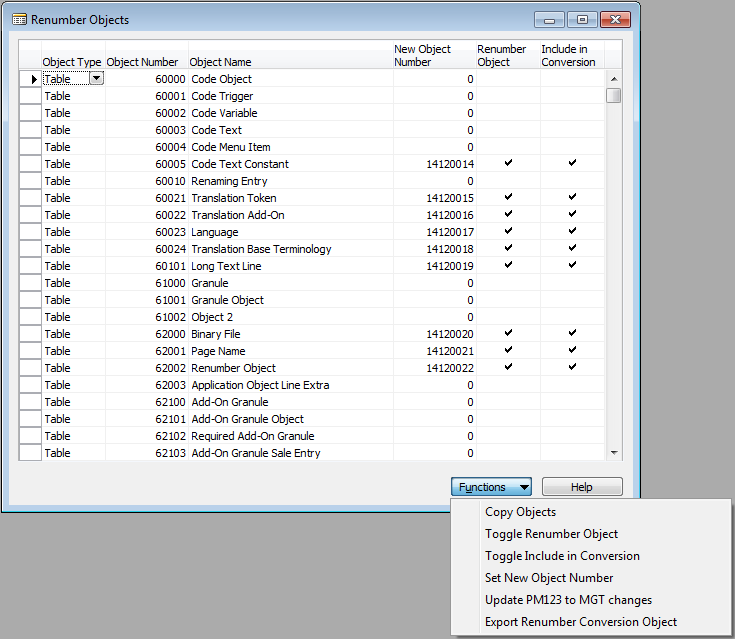
A data conversion codeunit can also be created. This can be used to move the data from the old range to the new range after finishing the renumbered objects.
Renumbering Controls on Forms and Reports
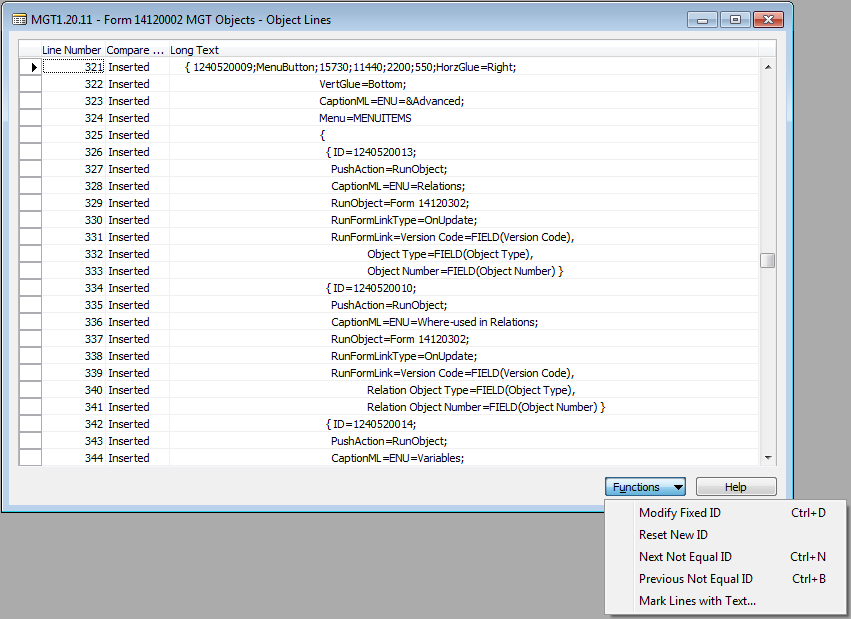
To release an ISV product with high quality standard, the control IDs added on base forms, reports and pages must be properly controlled. Depending on what license key a solution is developed with, this can be a problem. A tool inside the Mergetool® allows you to change these control IDs and all relations to them. An editing process makes it very easy to correct the control IDs.
Related resources
Mergetool History (download the latest version)
Pricing
The mergetool is available to all NAV partners for free. Only an updated developer license is required for full access to the source code.
Have you benefitted from using the Mergetool and want to support the future development and improvements can you donate to Mergetool.com using your Credit Card or PayPal account.
NAV customers can also buy the mergetool for internal development
projects, to be useful must module 7200 Application Builder be
purchased.
Mergetool.com
pricing for customers. The
Mergetool must be purchased through your NAV partner as other
modules to Dynamics NAV.
Please contact us for pricing for multiple NAV licenses.
Related resources